Discover the latest features and improvements in Ryviu this November, designed to enhance your store experience, reward loyal customers, and simplify review management.

Shoppers can now translate reviews, questions, and FAQs into their own language using AI. Translation settings are now centralized in one place, and FAQ translation is available for the first time.
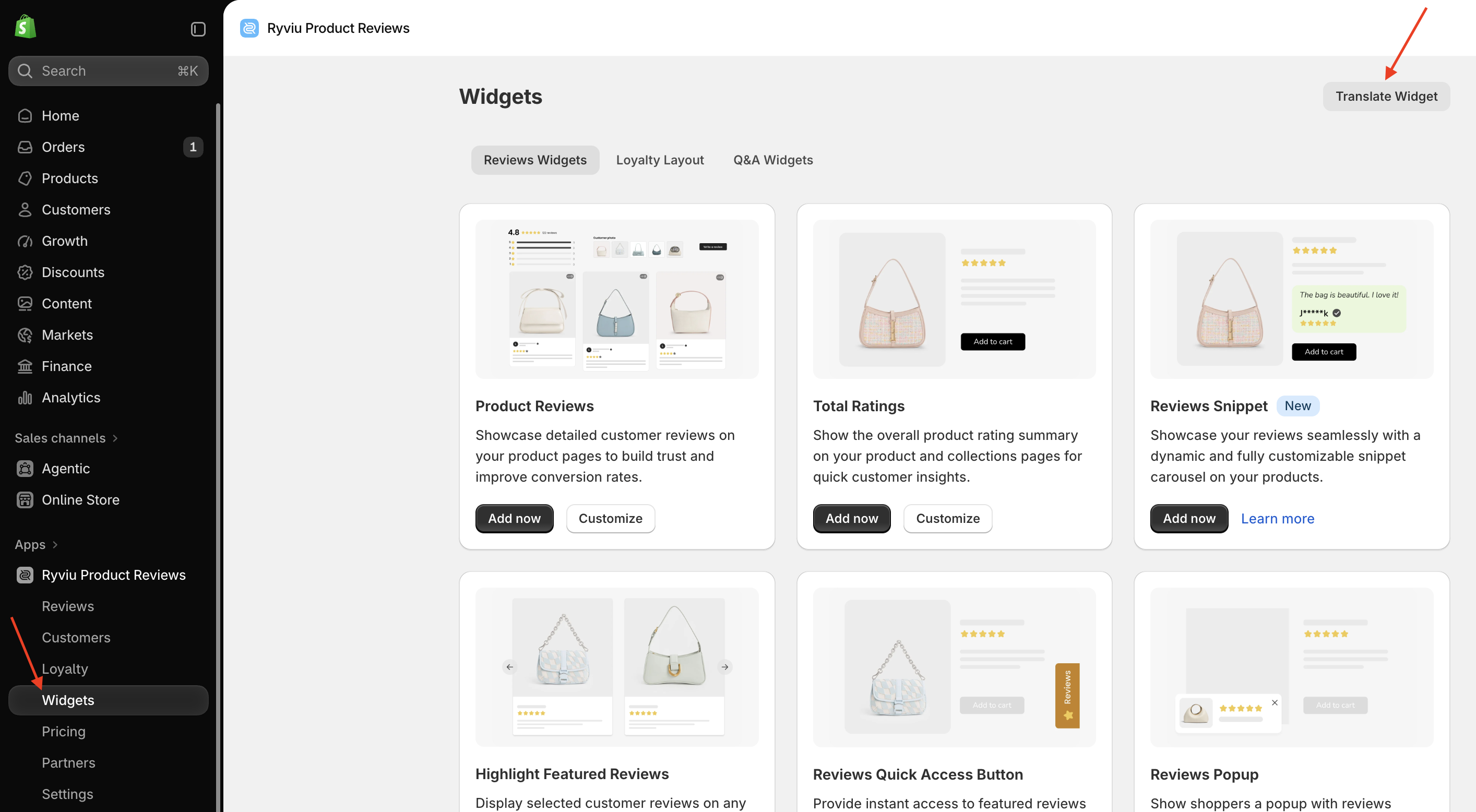
In the Ryviu dashboard, go to Widgets
Click Translate Widget
Open the Customer content tab.
Select a translation option and save your changes.
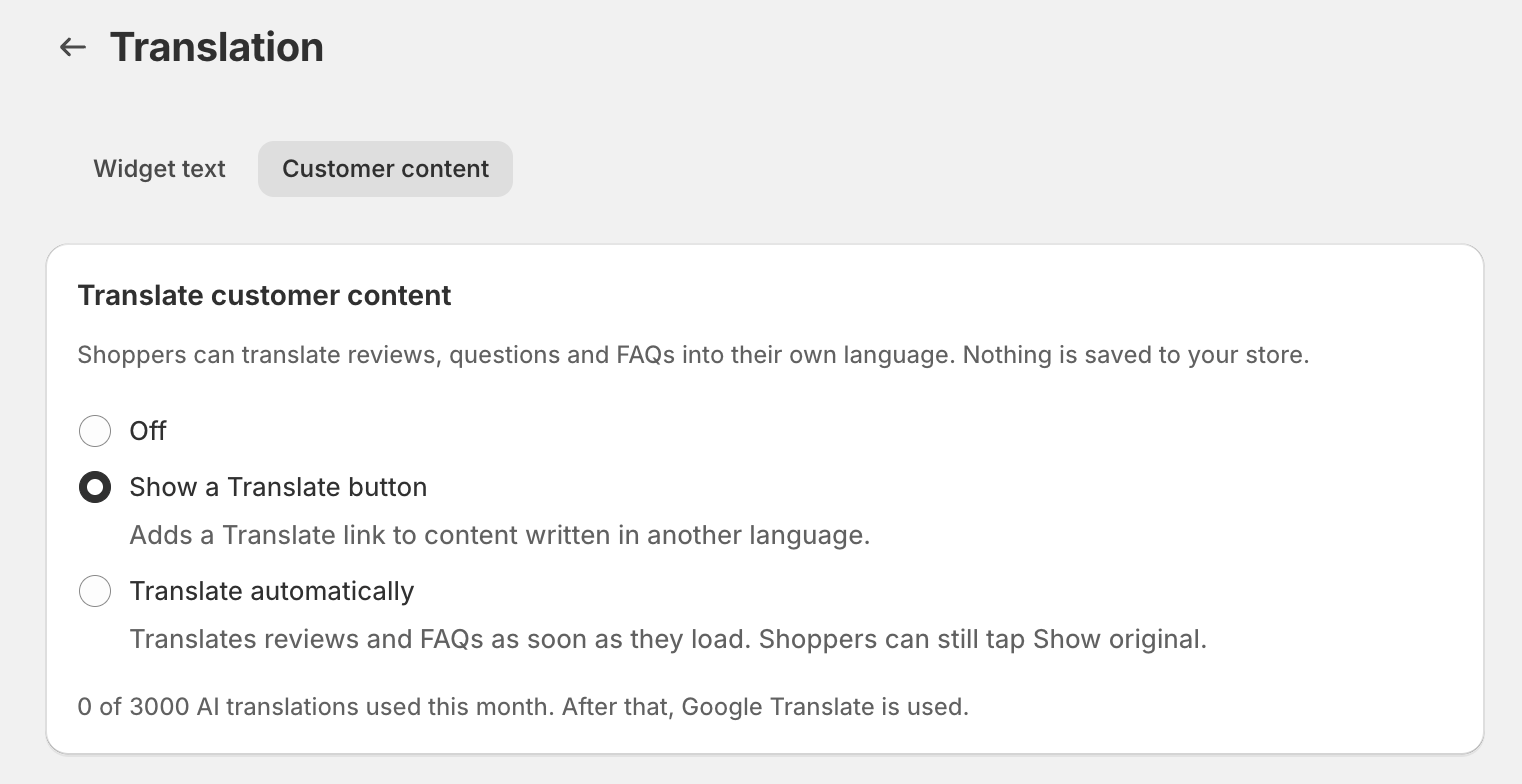
Shoppers can always select Show original to return to the original content.
Translations are not stored in the merchant's data, and the original content remains unchanged.
Translations are cached for up to 30 days, while each shopper's browser keeps translations for 7 days.
The FAQ widget requires a paid plan and Ryviu v3.
Merchants can display customer photos in a carousel and organize product reviews in a two-column layout. The updated widget gives shoppers more ways to browse review photos and find useful reviews.
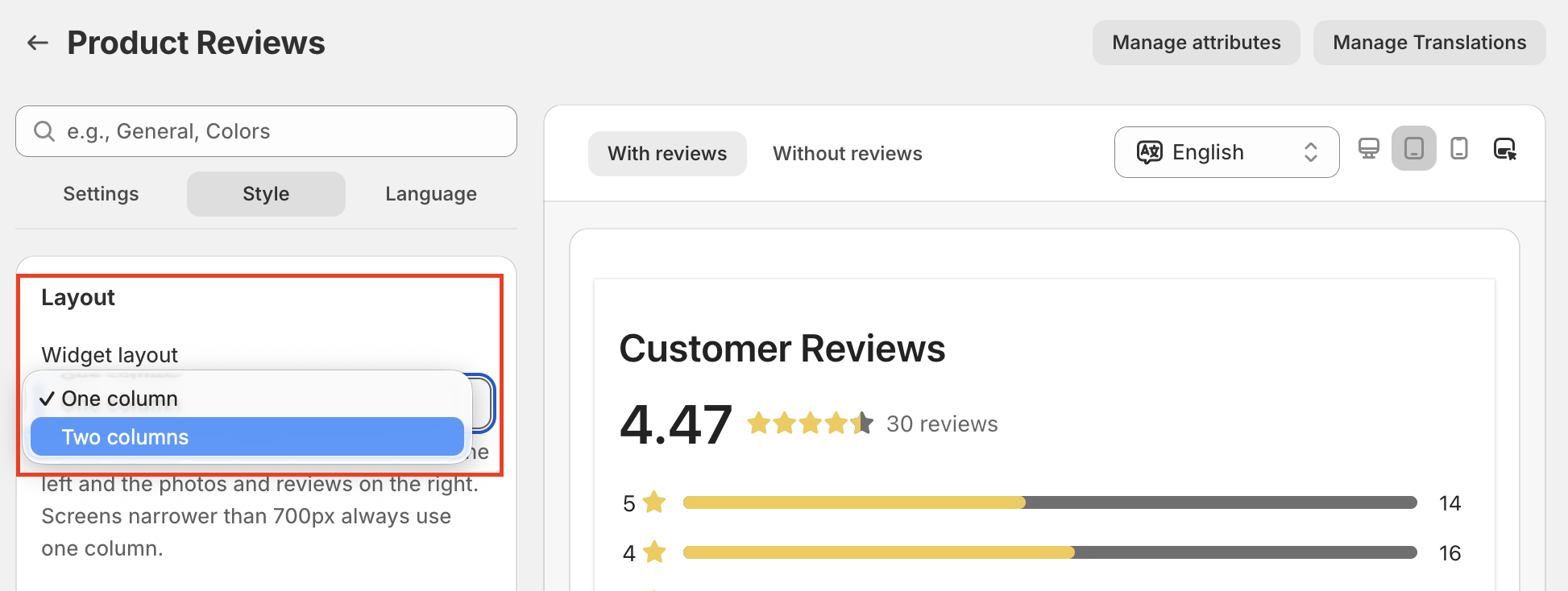
Choose between One column and Two columns.
Keep the review summary visible while customers browse reviews.
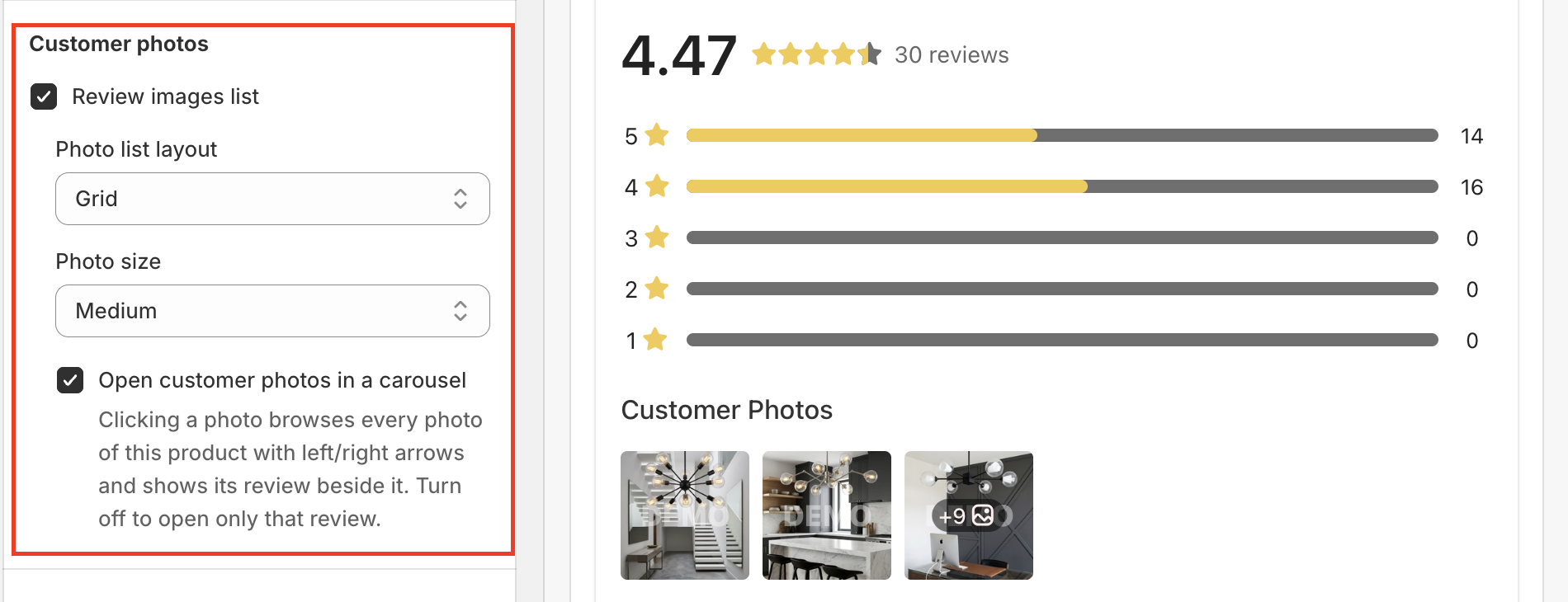
Customize customer photo displays with Grid or Carousel layouts and adjustable image sizes.
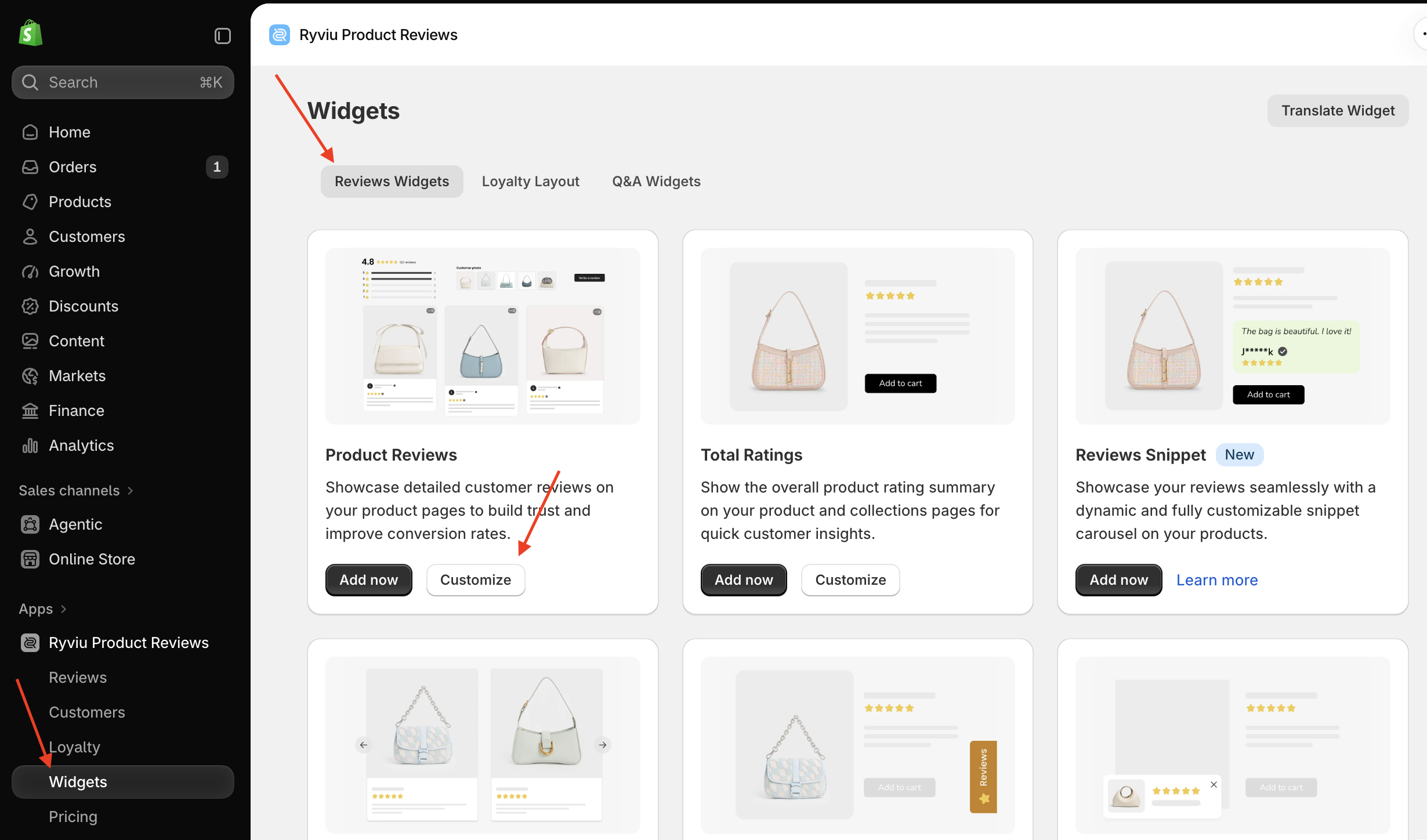
In the Ryviu dashboard, go to Widgets, select Product Reviews.
Click Customize of the Review widget
Under Style → Layout, select Two columns.
To customize customer photos, go to Settings tab → Sections → Customer photos.
Choose the photo layout and size, then save your changes.
The widget automatically switches to one column on screens narrower than 700px.
Existing shops keep their current layout until they choose to change it.
The sticky rating summary requires the updated theme extension to be deployed on the storefront.
Automatically switch the review widget between light and dark themes based on each page’s background. This is useful for stores with both light and dark pages.
In the customize review widget page, select Style tab.
Enable Auto-detect dark page backgrounds in the Color section.
Optionally customize text colors for light and dark pages, then save.
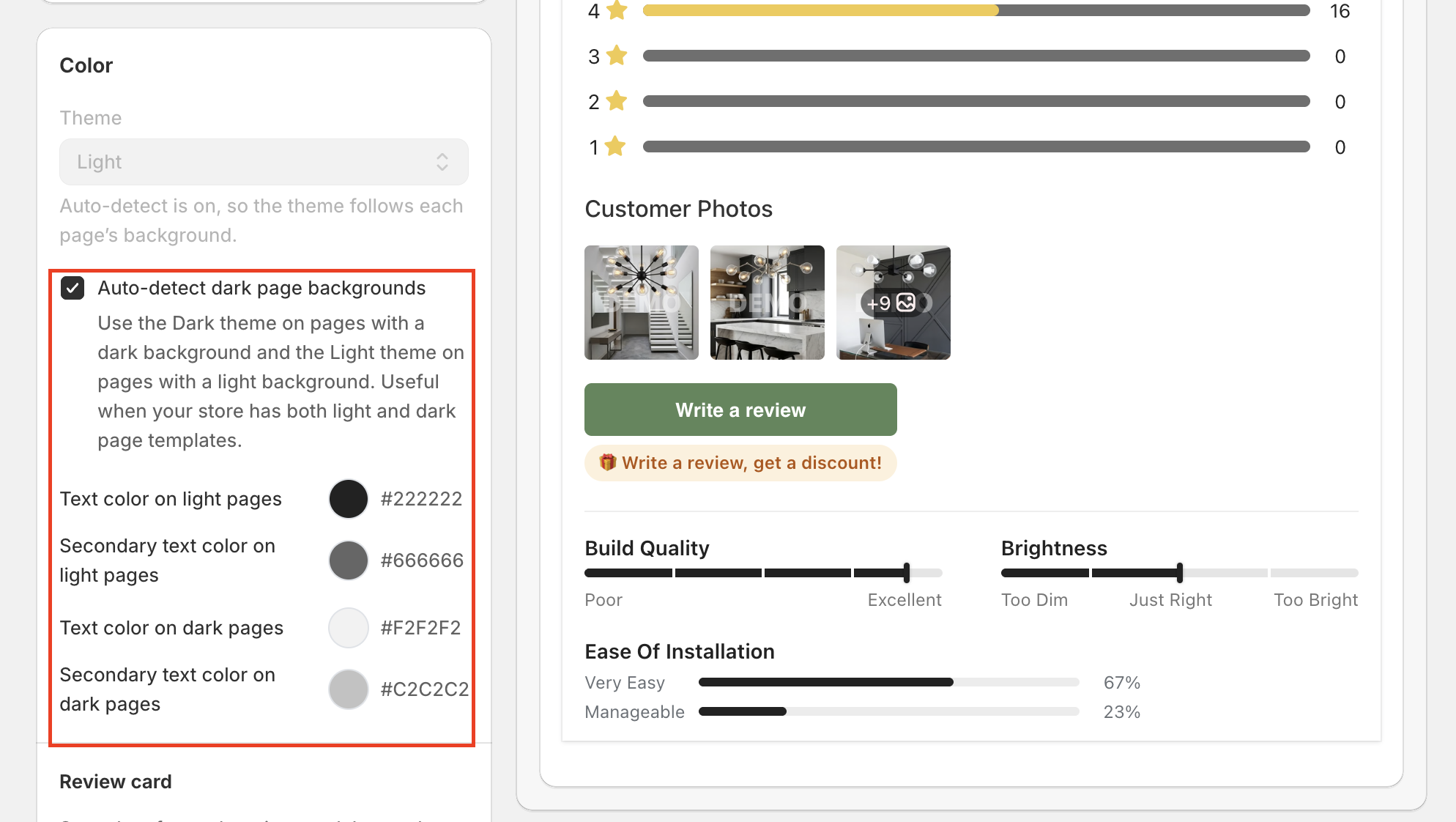
When auto-detect is enabled, the page background determines the theme. The Theme dropdown is disabled.
Auto-detect applies to the Product Reviews and Q&A widgets, but not the review popup.
The storefront may take a short time to update after saving.
Use AI to draft replies to customer reviews. Review and edit each draft before sending it to the customer.
In the Ryviu dashboard, go to Reviews and open a review or its detail page.
Click Suggest reply next to the reply box.
Review and edit the draft, then click Send to publish it.
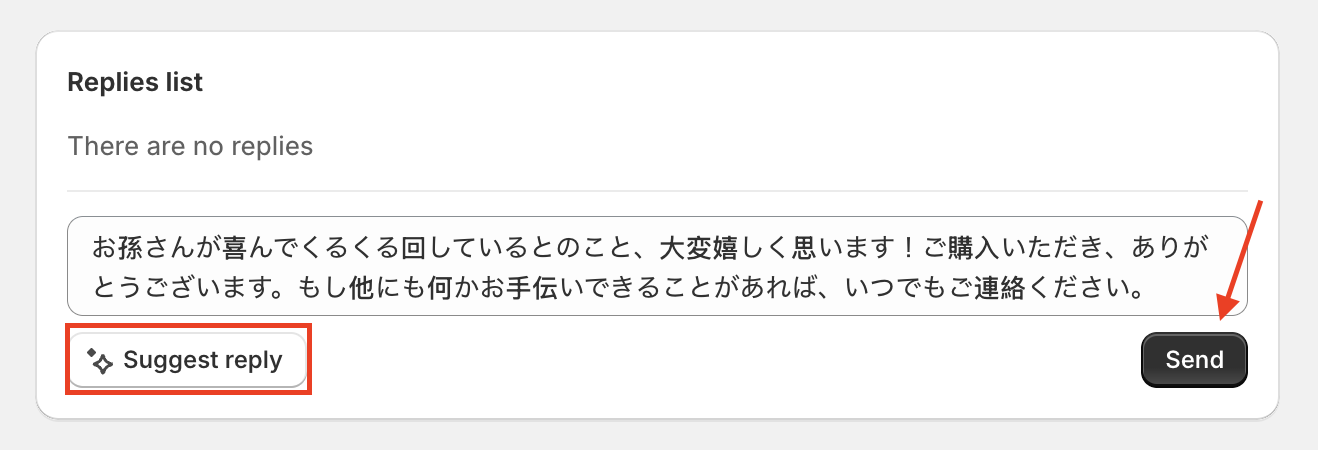
Drafts are not published until you click Send. The AI replies in the language of the review.
Merchants can now exclude specific orders from review request and reminder emails using order tags or customer email domains.
This feature helps merchants prevent marketplace orders from receiving review requests while continuing to collect reviews from their own store customers.
In your Ryviu account, go to Reviews → Emails → Email automation.
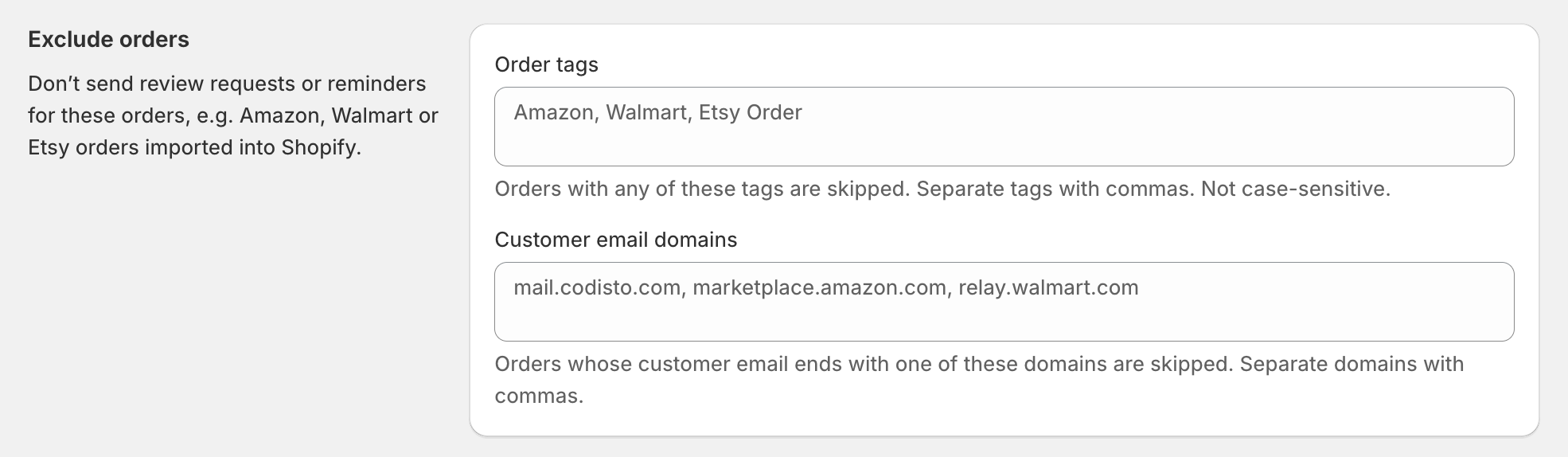
Find the Exclude orders section.
Enter the order tags and/or customer email domains to exclude. Separate multiple values with commas.
Save your changes.
Need help?
If you need assistance, contact our support team via live chat or email at [email protected].