The Widgets section provides different widgets to help you display product reviews, loyalty information, and customer questions on your Shopify store.
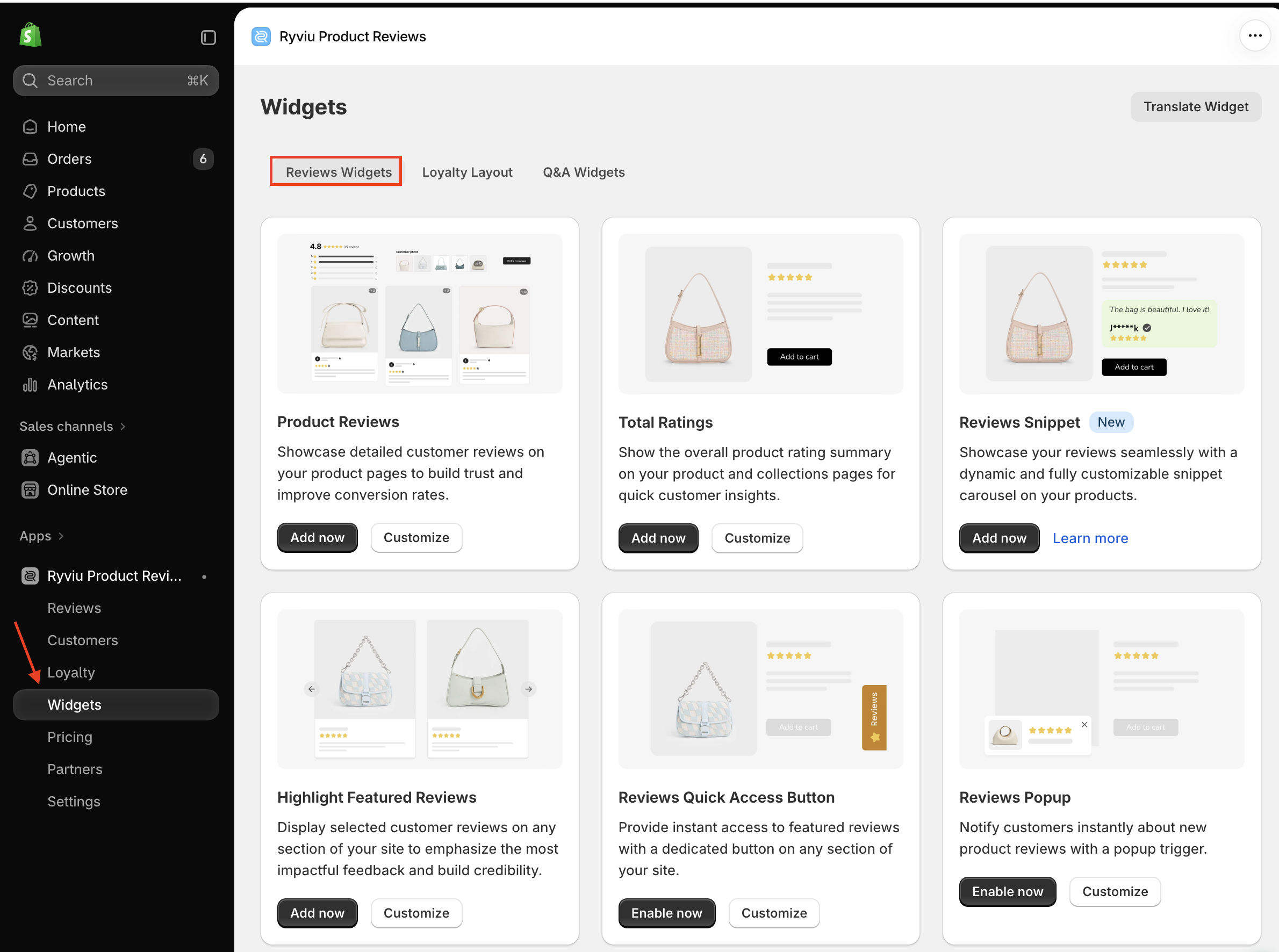
Ryviu offers the following review widgets:
Product Reviews
Total Ratings
Reviews Snippet
Highlight Featured Reviews
Reviews Quick Access Button
Reviews Popup
Review Badge
Shoppable Video
Store Reviews
For detailed setup and customization instructions, check our Reviews Widgets Settings guide.
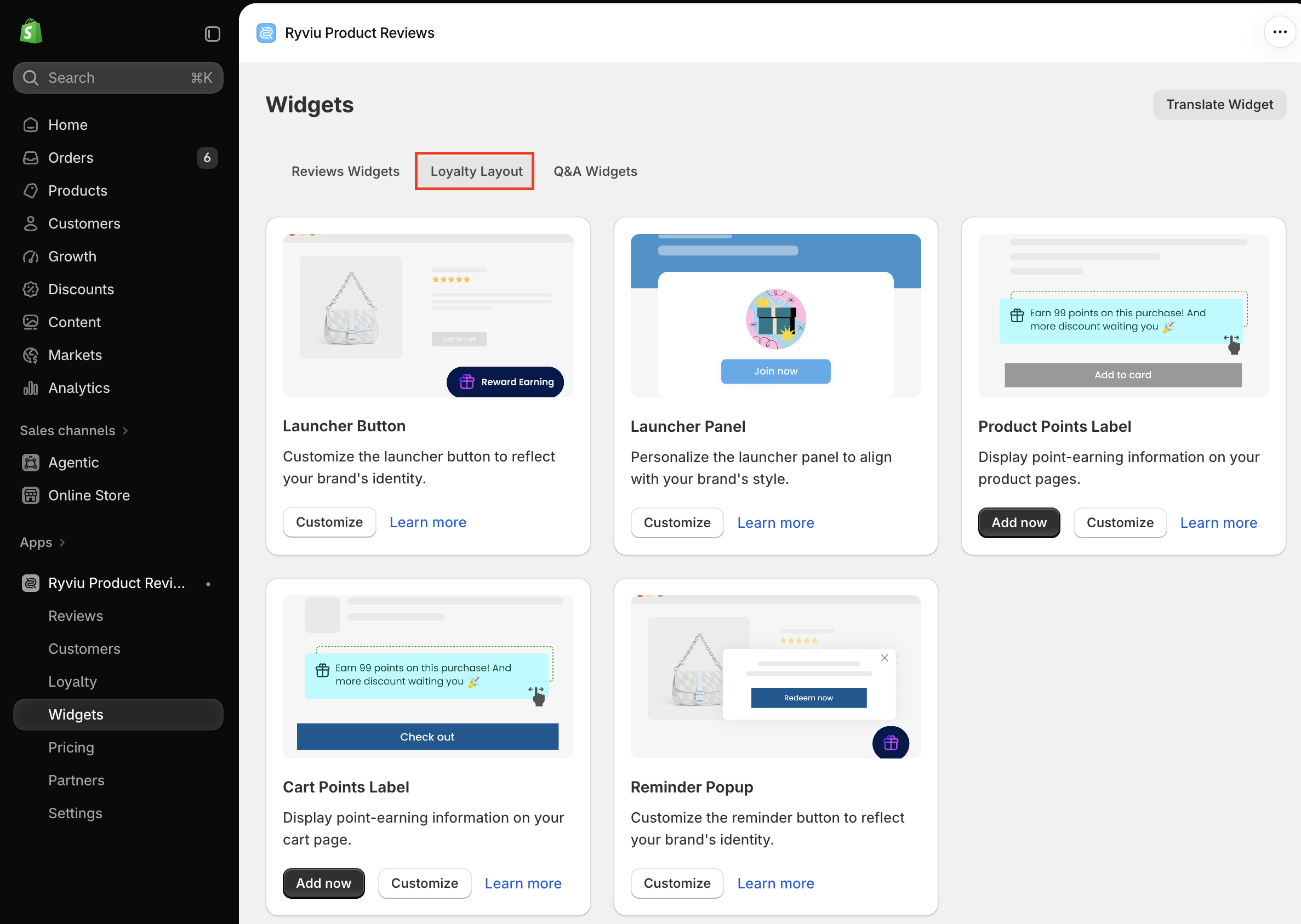
Customize and display loyalty program elements on your storefront with the following widgets:
Launcher Button
Launcher Panel
Product Points Label
Cart Points Label
Reminder Popup
For more details, check our Loyalty Layout Settings guide.
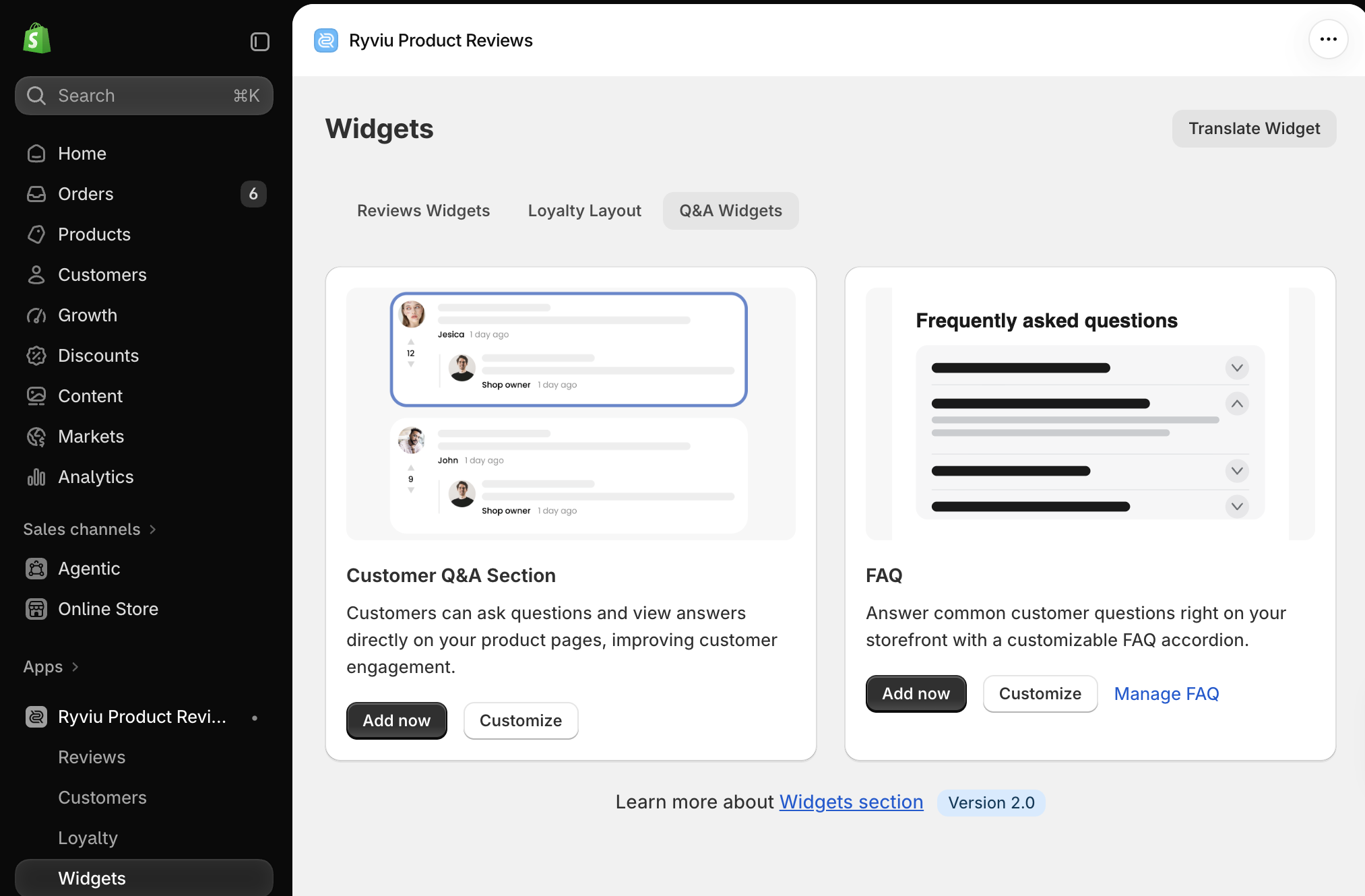
Ryviu provides two widgets to help customers ask questions and find answers:
Customer Q&A Section
FAQ
For setup instructions, check our Q&A Widgets Settings guide.
Each widget provides available actions depending on its configuration:
Customize: Click to edit the widget's settings and appearance.
Add Now / Enable Now: Click to add or enable the widget on your store if it hasn't been set up yet.
Learn More: Access detailed setup instructions for the widget.
You can also click Translate Widget to translate widget text into your preferred language.
Need help?
Get in touch with our support team through live chat or email at [email protected]. We're here to help!